Virtual datasource from a message
How to create a virtual datasource from a message
This article describes how Virtual DataSources (VDS) can be created from a message, by ingestion with a Transformation Configuration (TC).
Energyworx VDS relies on a specific filtering mechanism. VDS are defined by filtering on a tag, meaning all datasources intended for aggregation must share a common tag value. Let's illustrate this with an example.
Consider a datasource with the tag customer and the property id set to customer-test. If there are other datasources with the same customer tag and we want to aggregate them based on their respective customer.id, we can create a VDS to achieve this.
image widget. Press Enter to type after or press Shift + Enter to type before the widget
Steps to Create a VDS from a Message:
Prepare the Ingestion Message:
- The message you ingest must contain the identifier for the new VDS datasource.
- It should also include the value to filter on, unless this value is static.
- Note: If the VDS datasource ID and filter value are constant, you can define them directly within the Transformation Configuration (TC) using the static value helper, eliminating the need to include them in the message.
- Optionally, the message can contain aggregated time series data that will be stored within this newly created VDS.
Create a Transformation Configuration (TC):
- Follow the standard procedure for creating a TC as outlined in this guide here
Define the VDS Filter in the TC:
- Navigate to the
Datasource propertiessection within your newly created TC. - Add a
Filterby dragging and dropping aStatic ValueHelper column to the Filter. The filter needs to adhere to the format:tag.property=value. - For our example scenario where we want to create a VDS for the
customertag with theidproperty equal tocustomer-test, the initial filter would be:customer.id=customer-test.
Make the Filter Value Dynamic (If Necessary):
- If the value you want to filter on is present in the ingested message, you can make the filter dynamic.
- Locate the relevant column from the detected columns in your TC (e.g., a column named
vds_datasource_idwith a value likecustomer-test). - Drag and drop this column to the
Filterproperty in theDatasource properties. - To achieve the desired format of
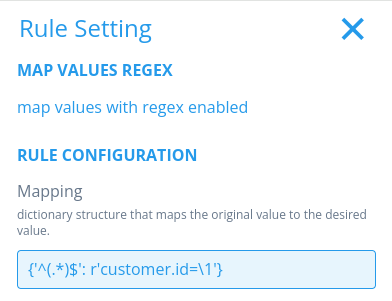
customer.id=customer-test, we need to add a prefix. For this, use theMap Values Regexfunctionality. Configure it to addcustomer.id=before the dynamic value from thevds_datasource_idcolumn. This ensures the final filter applied will becustomer.id=customer-test.

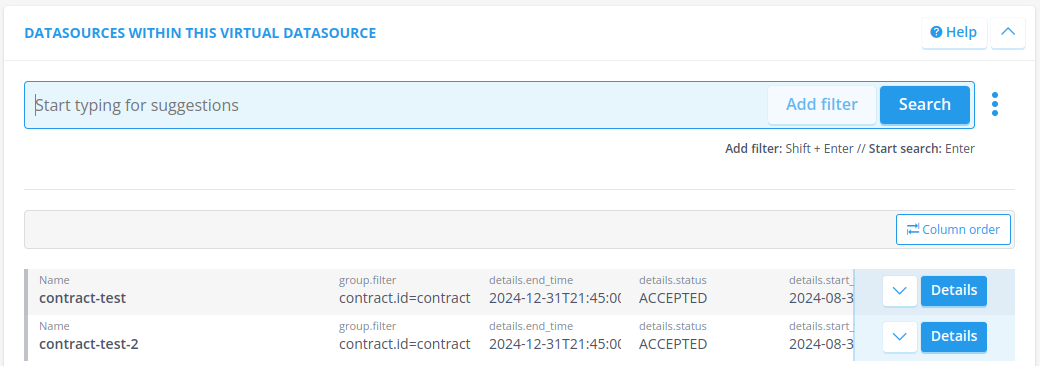
Now, if we ingest the message with a MA and the TC we created a minute ago, it will result in a new VDS.
Good to Know
For automatically aggregating data into your VDS, you can set up a trigger schedule. This involves creating a trigger schedule (see here for instructions) and then creating a Transformation Configuration (TC) based on the output of that scheduled process.